Class Timetable
Class Schedule
ℹ️ To register and use the platform, you must obtain a unique authorization link from the educational institution’s administration. Follow the link and complete the registration by entering your email address and creating a password.
ℹ️ A teacher will be able to access the class journals they teach only after the educational institution’s Administrator assigns a schedule to the teacher.
Steps
- Log in to your account.
- You will be taken to the Platform's home screen.
- Select the "Class Schedule" menu section. The page with the institution's schedule will open.
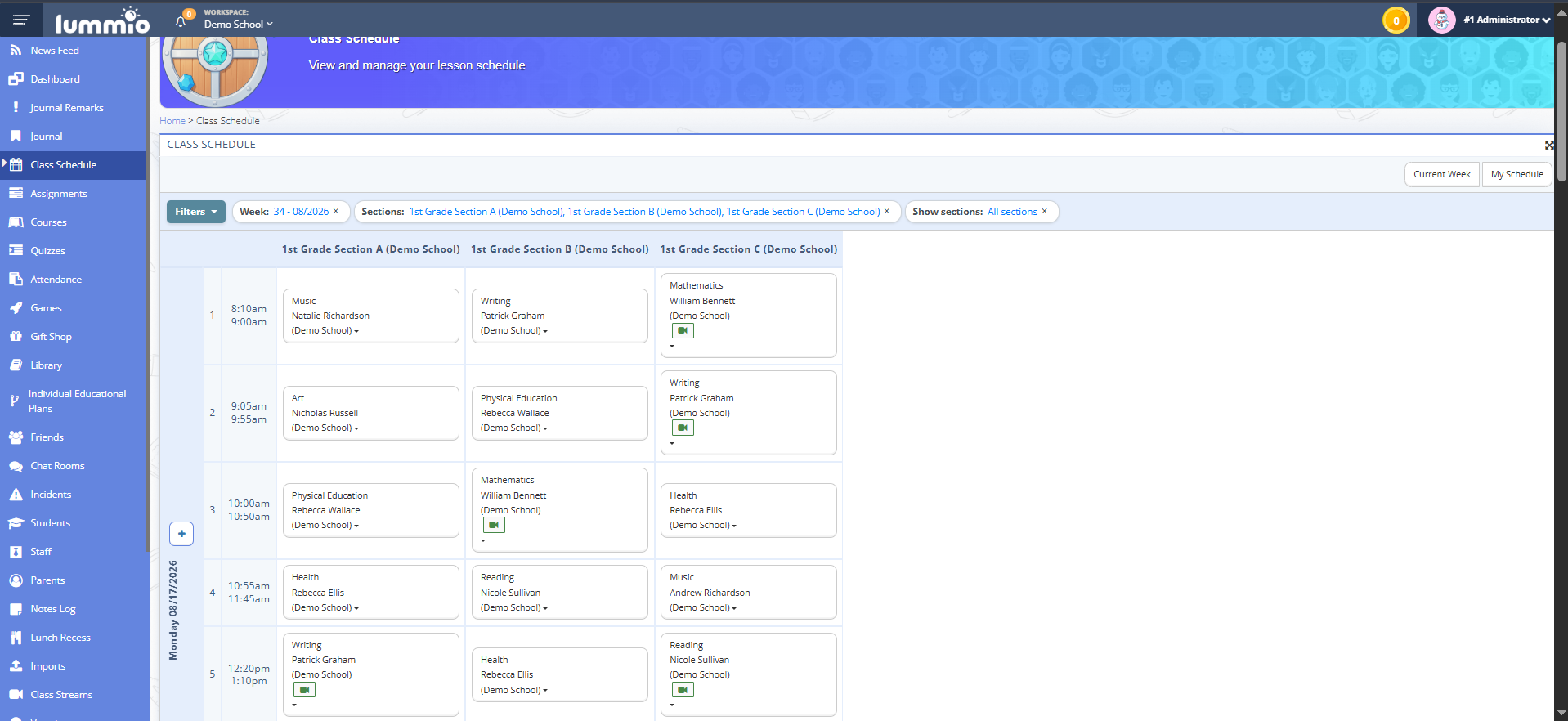
Fig. 1 — The "Class Schedule" menu section - Click the "My Schedule" button to view only your classes.
Click the "General Schedule" button to view all classes of the institution.
Click the "Current Week" button to navigate to the page with the schedule for the current week. - Use the filter to sort the class schedule by date, section (or sections), teacher(s) and choose to display all sections or only those with classes this week. Then click "Search".
- To edit a subject, click on the dropdown arrow next to it. A menu will open with the options: Edit, Remove, Settings.
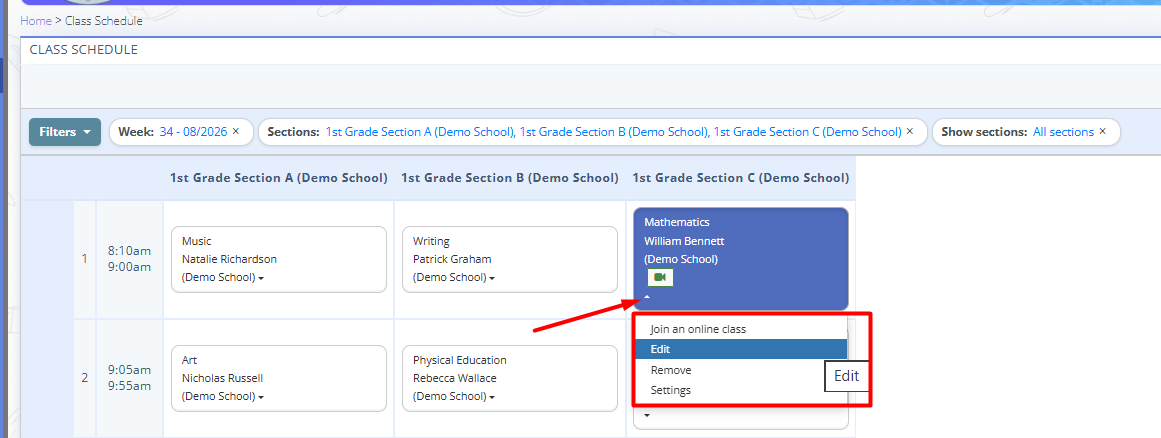
Fig. 2 — Schedule actions menu - Select "Edit" if you need to edit the class specifically for this day only. An editing window will open.
You can change: classroom, subject, teacher, section/subsection, grading system, date, and class period.
This change will apply only to this class on this day and will not affect this class on the same day in subsequent weeks. - Select "Remove" to remove the class from the schedule.
- Select "Settings", if it is required to enter changes that affect the whole sequence of classes within a specific period. An editing window will open with additional information about the subject:
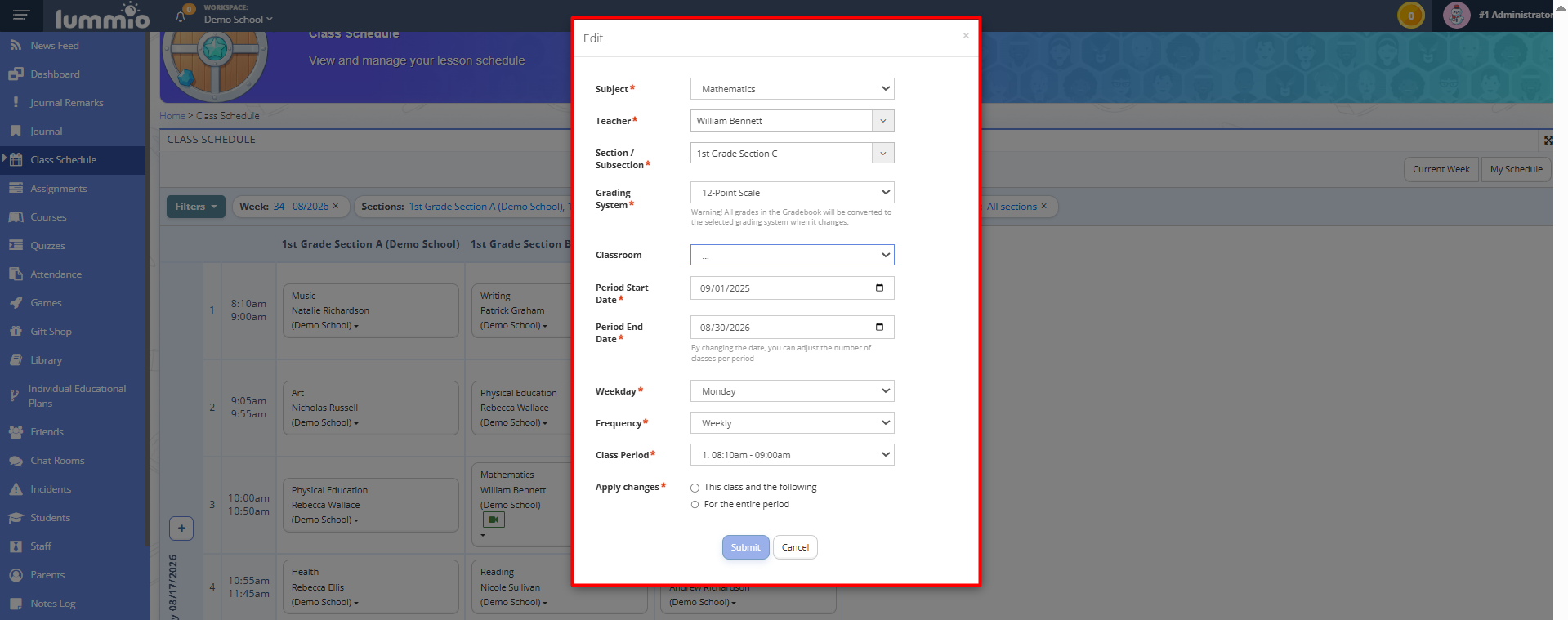
Fig. 3 — Schedule settings form- Classroom;
- Subject;
- Teacher;
- Section/Subsection;
- Grading system;
- Period start date;
- Period end date;
- Weekday;
- Frequency;
- Class Period;
- Apply changes:
- this class and the following;
- for the entire period;
Filling in the "Apply changes" field will update the class settings for this day of the week for the entire specified period.


How to Add a Class Schedule
Classes can be added either as a one-time entry or for a specific extended learning period.
- To add a class as a one-time entry, click the "+" button next to the required date and select "Add Class". The schedule form will open. The changes will apply only once and will not affect other periods.
- Fill in the required fields and click "Submit".
- To add a class for any learning period (a semester or the entire academic year), click the "+" button next to the required date and select "Add Class Scheduler". The form for adding a schedule for an extended period will open.
- Fill in all the required fields, including "Period Start Date" and "Period End Date". This defines the period during which the specified subject should be taught in the specified section.
- After filling in all the required fields, click "Submit".
Replacing a Subject in an Already Assigned Schedule
⚠️ The main mistake is trying to simply change the subject directly in an existing class through the Class Scheduler. In most cases, the system will not allow this and will display a notification: "It is impossible to modify or delete classes that contain grades or assignments."
To correctly replace a subject, you should not edit past classes. Instead, you need to end the teaching period for one subject and create a new period for another.
How to replace a subject in the schedule
- Go to the "Class Schedule" menu section on the left.
- Using filters select the required section and the day of the week starting from which the new subject should be taught.
- Select the class with the subject you want to replace, click the dropdown arrow and select "Settings" from the list.
- In the "Period End Date" field, set the last day this subject should still be taught.
- In the "Apply Changes" field below, select the option "This class and the following".
- Click "Submit".
After this, the subject will no longer appear in the schedule on dates after the specified end of the period. - Next, click the plus icon (+) on the left next to the day of the week from which the new subject should start, and choose "Add Class Scheduler".
- Fill in all fields, specifying the new subject and the appropriate teacher.
- In the "Period Start Date" field, set the exact date from which this subject should appear in the schedule (according to the day of the week you are editing).
- Click "Submit".
As a result:
- the previous teaching period for the subject is correctly completed in the schedule even if there were grades, home assignments etc.;
- the new subject starts being taught from the required date;
- all previous records (grades, attendance, assignments) remain saved.
Extend the schedule to the next semester
If at the beginning of the academic year the schedule was assigned only for one semester (for example, Semester I), and later it turned out that the schedule will remain unchanged for Semester II as well, in this case it is necessary to:
1. Go to the "Class Schedule" section.
2. Using filters, find the schedule of the required section for the specific period.
3. Go to the Settings of each class as indicated in the instructions above.
4. Change the Period End Date to the end date of the academic year.
5. In the "Apply changes" field, select "This class and the following".
6. Click "Submit".
7. If you used Schedule Import via an imported document, then change the dates in the "Period End Date" column to the end date of the academic year in the latest imported file and import it again ( if no other changes in the Schedule were applied within Semester I).
Related User Guideline:
Schedule import
Assign Classes on Weekends
If you need to schedule classes on weekends, simply select the corresponding days (Saturday/Sunday) in the class adding form opened via the "+".
1. Go to the "Class Schedule" menu section.
2. Click the "+" button next to any day in the schedule.
3. Select "Add Class" if you need to add a one-time class on a weekend, or "Add Scheduler" if such classes should be scheduled repeatedly during a specific academic period.
4. Fill in the required fields, and in the "Date" field (for a one-time class) or the "Day of the Week" field (for recurring classes), select the required day - Saturday or Sunday.
5. After saving, the selected weekend days will automatically appear in the schedule table.
Restrict Teachers to Viewing Only Their Own Class Schedule
Teachers can view either the schedules of all teachers within the school or only their own schedule on the platform. Depending on the institution's requirements, teacher access to schedules can be restricted or expanded. This can be configured by the Administrator/Principal through the "Settings" → "ACL Manage" menu section.
To do this:
1. Go to "Settings" → "ACL Manage" menu section.
2. In the search field located in the upper-left corner of the page, enter the permission block name "Class Schedule".
3. The permissions table will display all permissions related to class schedule management for different roles on the platform.
4. Find the permission "Data Filter: Only Own". This permission enables teachers to view schedules only for the classes they teach and restricts access to schedules of other teachers in the school.
5. Select the checkbox for this permission in the "Teacher" column. This will limit teachers to viewing only their own schedules, and the "General schedule" button will disappear from the schedule page.
6. Click "Save".
7. If a teacher's access is restricted to their own classes only, the schedule page will display only their personal schedule, and only the "Current Week" button will be available in the upper-right corner for schedule date filtering.
8. If a teacher has extended schedule access, they will be able to view the general schedule of all teachers in the school. In this case, two buttons will be available in the upper-right corner of the page: "Current Week" and "My Schedule", allowing them to switch to viewing only their own schedule when needed.
Schedule Grid appearance
There are two display options for the schedule page appearance:
- with schedule grid (when the class time slot and its sequence are displayed in a separate column on the left for the entire schedule)
- without grid (each class block shows the class time and its sequence).
To enable the schedule grid view:
1. Go to the "Settings" -> "General Settings" menu.
2. Find the "Timesheet Grid" setting.
3. Click the "Edit" button.
4. Select "Enabled".
5. Click "Submit".
To disable the schedule grid view:
1. Go to the "Settings" -> "General Settings" menu.
2. Find the "Timesheet Grid" setting.
3. Click the "Edit" button.
4. Select "Disabled".
5. Click "Submit".